Prepare the input
Identify the text, image, key frames, references, or source video you already have.
HeyVigo CREATIVE STUDIO
Creative Studio organizes text, images, first and last frames, references, and source video into clear capability pages before you continue into creation.
HeyVigo Creative Studio is a capability hub that helps you choose a video path and model information based on available material, target output, and control requirements.
Six direct child pages explain inputs, outputs, boundaries, and creation entry points.
Choose the input you already have to see the matching creation path.
Review suitable inputs, target tasks, and the workflow.
View text to videoEvery capability uses the same task language for inputs, constraints, and output.
Identify the text, image, key frames, references, or source video you already have.
Add the subject, action, camera, style, duration, and output requirements.
Receive a result that can be previewed, reviewed, and continued into a project.
Continue once each step has the minimum information it needs.
Confirm the source material currently available.
Open the matching page and review its boundaries.
Add subjects, actions, shots, and output requirements.
Continue through the existing sign-in, permission, and balance checks.
Product interfaces show how capabilities enter tasks and projects.
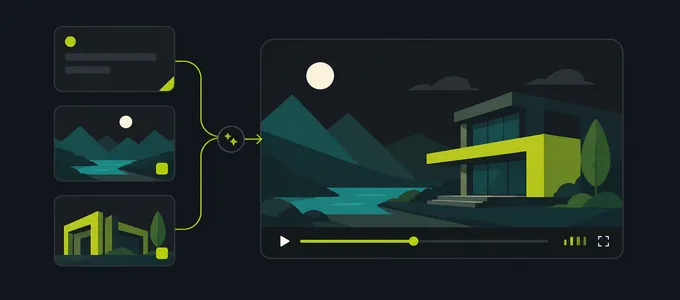
Shows how inputs and tasks are organized.

Shows how results can be previewed, reviewed, and continued.
Related entries preserve the current task context.
Confirm the input, goal, and control requirements, then continue into a capability page or the existing creation workspace.
Start creating