Prepare a storyboard list, assets, and batch requirements
Make sure the input is clear, complete, and relevant to the task.
HeyVigo TASK CAPABILITY
Prepare a storyboard list, assets, and batch requirements, add constraints, review the output, and continue into the project workflow.
View capability boundariesTurn a storyboard list, assets, and batch requirements and task requirements into a clear video production task that can be generated, reviewed, and handed off to the project workflow.
Separate source inputs, task constraints, and target output to keep the task specific.
Make sure the input is clear, complete, and relevant to the task.
Define the subject, action, shots, structure, and details that must remain stable.
Review the result against the task before adjusting or continuing.
Structure the task around inputs, constraints, result review, and project handoff.
AI Batch Shot Generator uses input organization to keep the task clear and reviewable.
AI Batch Shot Generator uses task constraints to keep the task clear and reviewable.
AI Batch Shot Generator uses subject continuity to keep the task clear and reviewable.
AI Batch Shot Generator uses workflow handoff to keep the task clear and reviewable.
AI Batch Shot Generator uses result review to keep the task clear and reviewable.
AI Batch Shot Generator uses project reuse to keep the task clear and reviewable.
Start with the input, then review the result and continue into the project.
Organize a storyboard list, assets, and batch requirements and confirm the current task goal.
Define subjects, steps, shots, and output requirements.
Continue through the existing sign-in, permission, and configuration checks.
Review the task result, then adjust or save it.
See how task inputs and results are organized in the workflow.
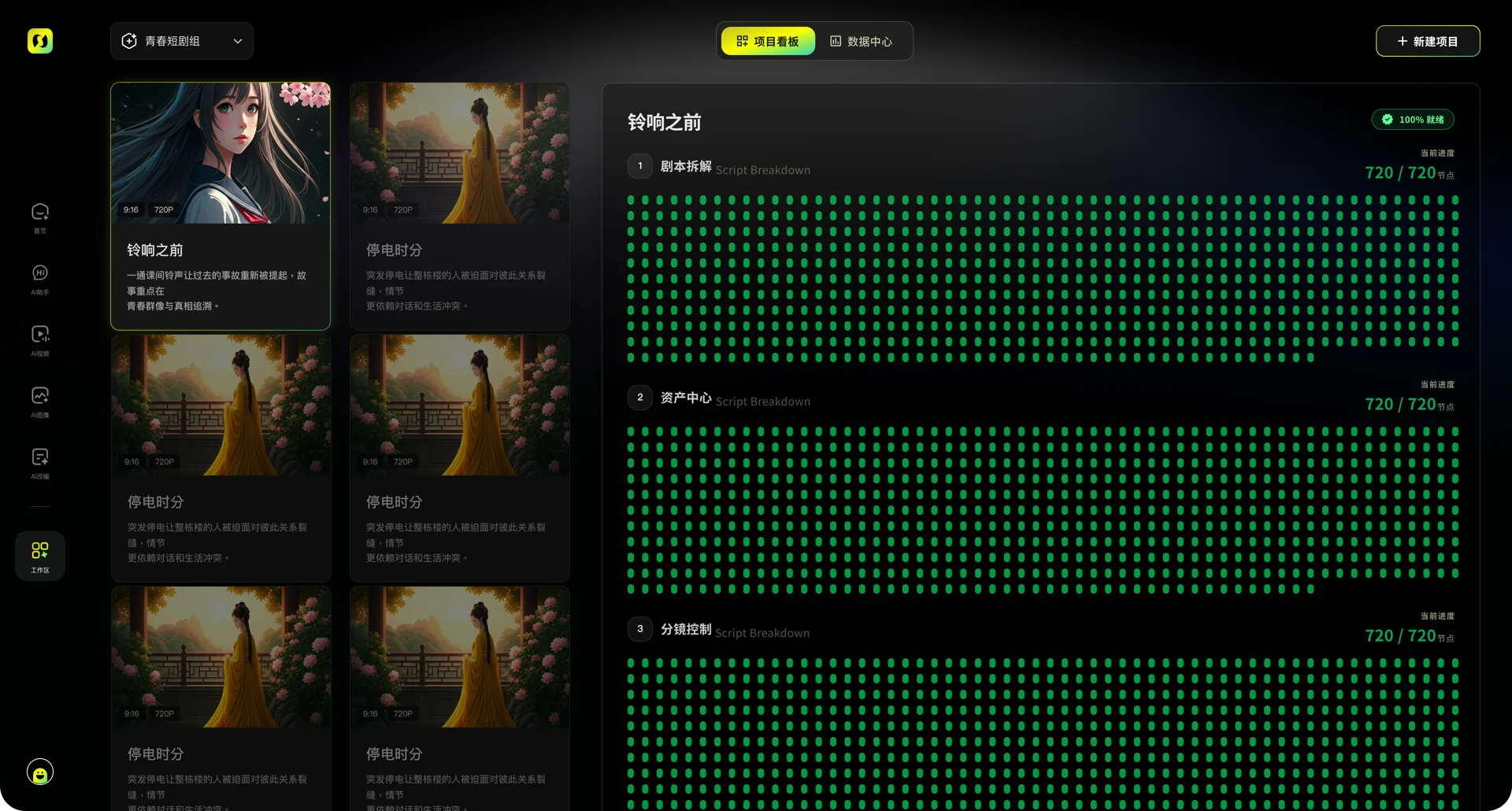
Shows how task inputs and materials are organized.

Shows how results are previewed and continued.
Confirm input requirements, output expectations, and exception handling before starting.
Confirm available inputs and task settings before starting.
Provide complete information for the current task.
Split complex requirements into reviewable steps.
Adjust the input or requirements based on page feedback.
Related capabilities keep their own inputs, search intent, and creation paths.
Organize a storyboard list, assets, and batch requirements and the task requirements, then continue into the creation workflow.
Start creating